![Targomo-logo-email-logo-template.png]](https://info.targomo.com/hs-fs/hubfs/Targomo-logo-email-logo-template.png?height=40&name=Targomo-logo-email-logo-template.png)
You can export impact analysis results directly in your reports, making it easier to share the expected impact of opening or closing locations.
What's new
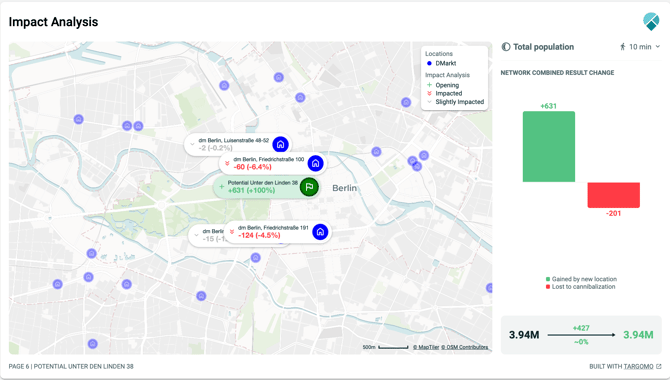
- Add Impact Analysis slides to any report.
- Impact analysis runs automatically based on the selected location:
- Potential location → Opening analysis
- Existing or competitor location → Closing analysis
- Each slide displays the impact for a single metric, such as Predicted Revenue or Total Population on the whole network. It visually shows how much you gained and lost from this impact simulation.
- Add multiple Impact Analysis slides to show impact on different metrics.
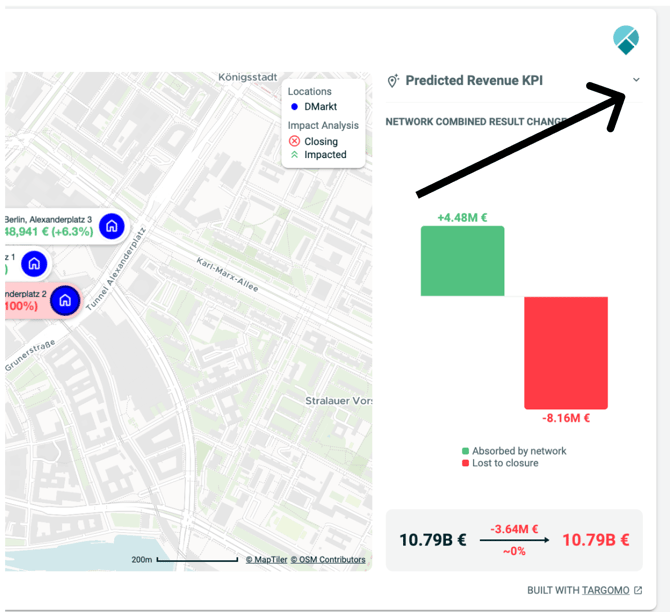
- Change the displayed metric in the slide at any time using the dropdown on the slide.
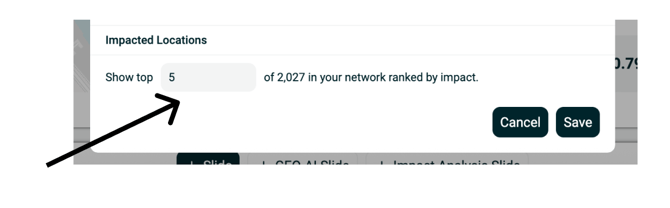
- Control how many impacted locations are shown on the map for a cleaner visualization.
- Once impact analysis slide is added for a location, when you generate report for another location, it is automatically added.
How to use
- Open New Reports.
- Scroll to the bottom of the report.
- Click Add Impact Analysis Slide.

- The impact analysis is generated automatically for the selected location.
- To display a different metric, use the dropdown on the slide.
- To adjust the number of impacted locations shown on the map:
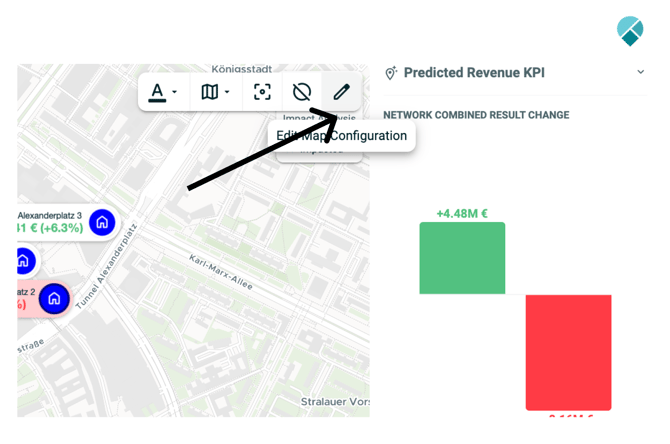
- Hover over the map.
- Click the Edit button.
- In the dialog, set the number of impacted locations to display.